
Calibre Web Automated
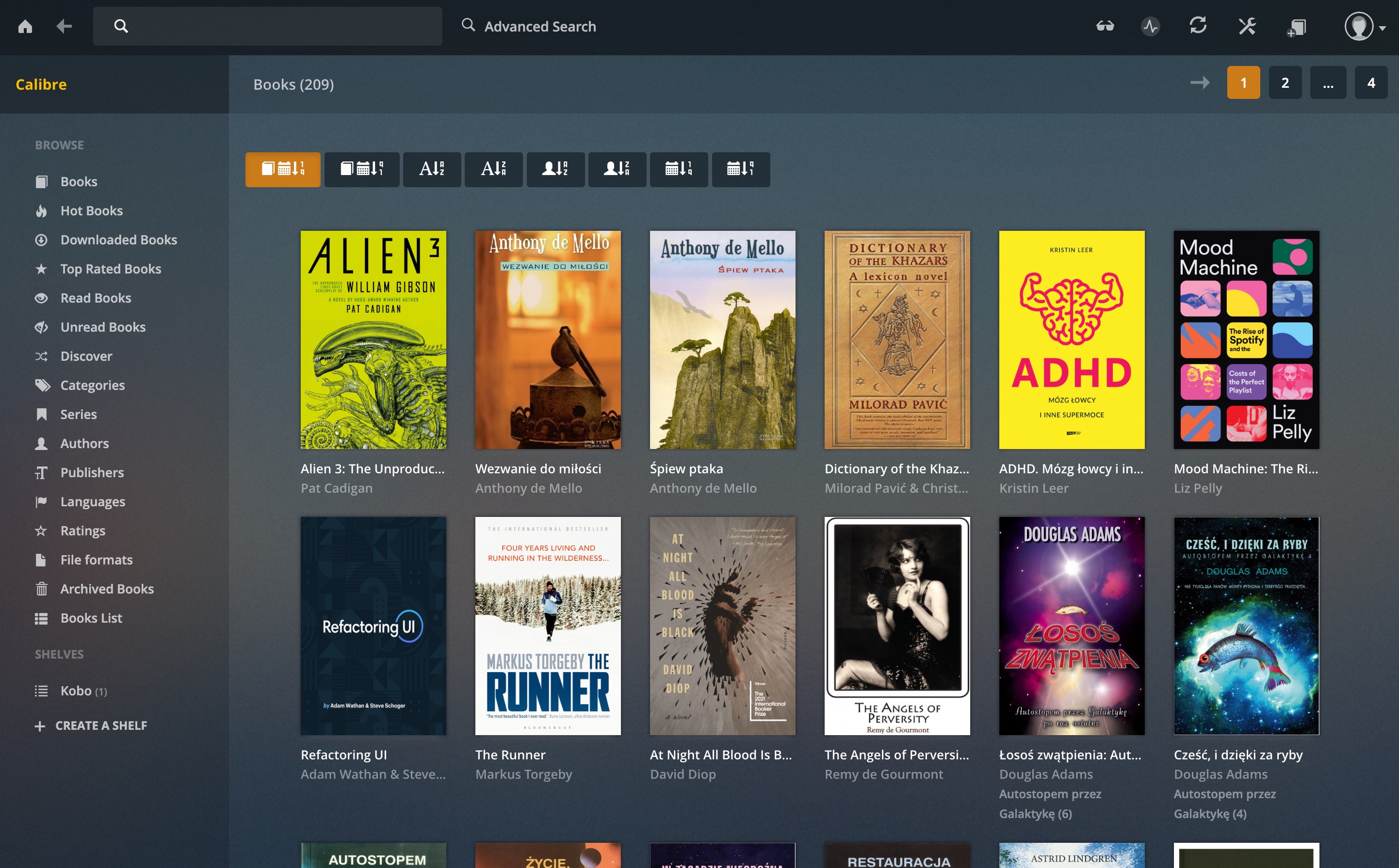
This is a follow-up to my post about setting up Calibre book library on my local server. I found a better way!
This post is a part of my Homelab Series. See the index here.
CWA Installation
Calibre Web Automated is the final (so far) form of modernizing the OG book management app, Calibre. It runs in docker and it has tons of QOL improvements.
---
secrets:
  hardcover-api:
    file: /home/pe8er/.secrets/hardcover
services:
    calibre-web-automated:
        image: crocodilestick/calibre-web-automated:latest
        container_name: calibre-web-automated
        secrets:
    	    - hardcover-api
        environment:
            - PUID=1000
            - PGID=1000
            - TZ=Europe/Warsaw
            - HARDCOVER_TOKEN=/run/secrets/hardcover-api
        volumes:
            - /home/pe8er/docker/cwa:/config
            - /home/pe8er/Downloads/Completed:/cwa-book-ingest
            - /mnt/ssd-sandisk/CalibreLibrary:/calibre-library
        ports:
            - 8083:8083
        restart: unless-stopped
Default login credentials:
- Username: admin
- Password: admin123
Post Install
- Disable password requirements: Basic Configuration → Security Settings → User Password Policy
- Change admin password
- Enable uploads: Basic Configuration → Feature Configuration → Enable Uploads
- Enable Kobo and Hardcover sync: same panel as above
- Enable Kobo integration
Calibre Downloader
This apps lets me search and download books from annas-archive.org, and adds them to CWA automatically.
- Make a folder for it:
mkdir /home/pe8er/docker/cwa-downloader
cd /home/pe8er/docker/cwa-downloader
- Get the docker-compose.yml:
curl -O https://raw.githubusercontent.com/calibrain/calibre-web-automated-book-downloader/refs/heads/main/docker-compose.yml
services:
  calibre-web-automated-book-downloader:
    image: ghcr.io/calibrain/calibre-web-automated-book-downloader:latest
    # Uncomment to build the image from the Dockerfile for local testing changes.
    # Remember to comment out the image line above.
    #build: .
    container_name: cwa-downloader
    environment:
      FLASK_PORT: 8084
      LOG_LEVEL: info
      BOOK_LANGUAGE: pl,en
      SUPPORTED_FORMATS: epub
      USE_BOOK_TITLE: true
      TZ: Europe/Warsaw
      APP_ENV: prod
      UID: 1000
      GID: 100
      # CWA_DB_PATH: /auth/app.db  # Comment out to disable authentication
      # Queue management settings
      MAX_CONCURRENT_DOWNLOADS: 3
      DOWNLOAD_PROGRESS_UPDATE_INTERVAL: 5
    ports:
      - 8084:8084
    restart: unless-stopped
    volumes:
      # This is where the books will be downloaded to, usually it would be
      # the same as whatever you gave in "calibre-web-automated"
      - /home/pe8er/Downloads/Books:/cwa-book-ingest
      # This is the location of CWA's app.db, which contains authentication
      # details. Comment out to disable authentication
      # - /home/pe8er/docker/cwa/app.db:/auth/app.db:ro
- Start the service:
docker compose up -d
- Access the web interface at
http://192.168.1.199:8084
Nice! Downloading works well and books show up in Calibre automatically. Next step:
Kobo Integration
There is a way to seamlessly display Calibre library on Kobo e-readers. It works very well and it’s pretty damn easy to do!
- Connect Kobo to computer via USB-C.
- Open CWA -> Account dropdown -> Admin -> Kobo Sync Token -> Create / View
-
Open
.kobo/Kobo/Kobo eReader.confand add the generated token to it:api_endpoint=http://192.168.1.199:8083/kobo/<hash> - Hit “Force Full Kobo Sync”
- Bob’s your uncle!